
Everything you need to run BUILD with confidence.
A faster, more flexible way to program. You'll feel at home in it after just one session. Here's everything you need: why it's better, a free course, every feature explained, and real help when you need it.
Learn
A guided walkthrough for your first program, plus a free course if you want the complete picture.
Your first program, step by step.
Click through each step at your own pace, and check them off as you go.
Want the full picture? Get to Know Build in 30 minutes!
Get to Know Build in 30 Minutes. Every corner of the environment, from navigating the interface to saving and sharing programs with athletes. Self-paced, totally free.
Why BUILD?
Why BUILD is worth it, and exactly what's different if you've been building in Calendar for years.
The features coaches can't stop talking about.
Click a feature below to see it in action.
A few features coaches keep coming back to.
Pulled straight from what our CSM team hears again and again from coaches using BUILD.
Same job, new workflow. Here's the translation coming from Legacy.
If you've been building in the old Calendar for years, here's how what you already know maps onto Build.
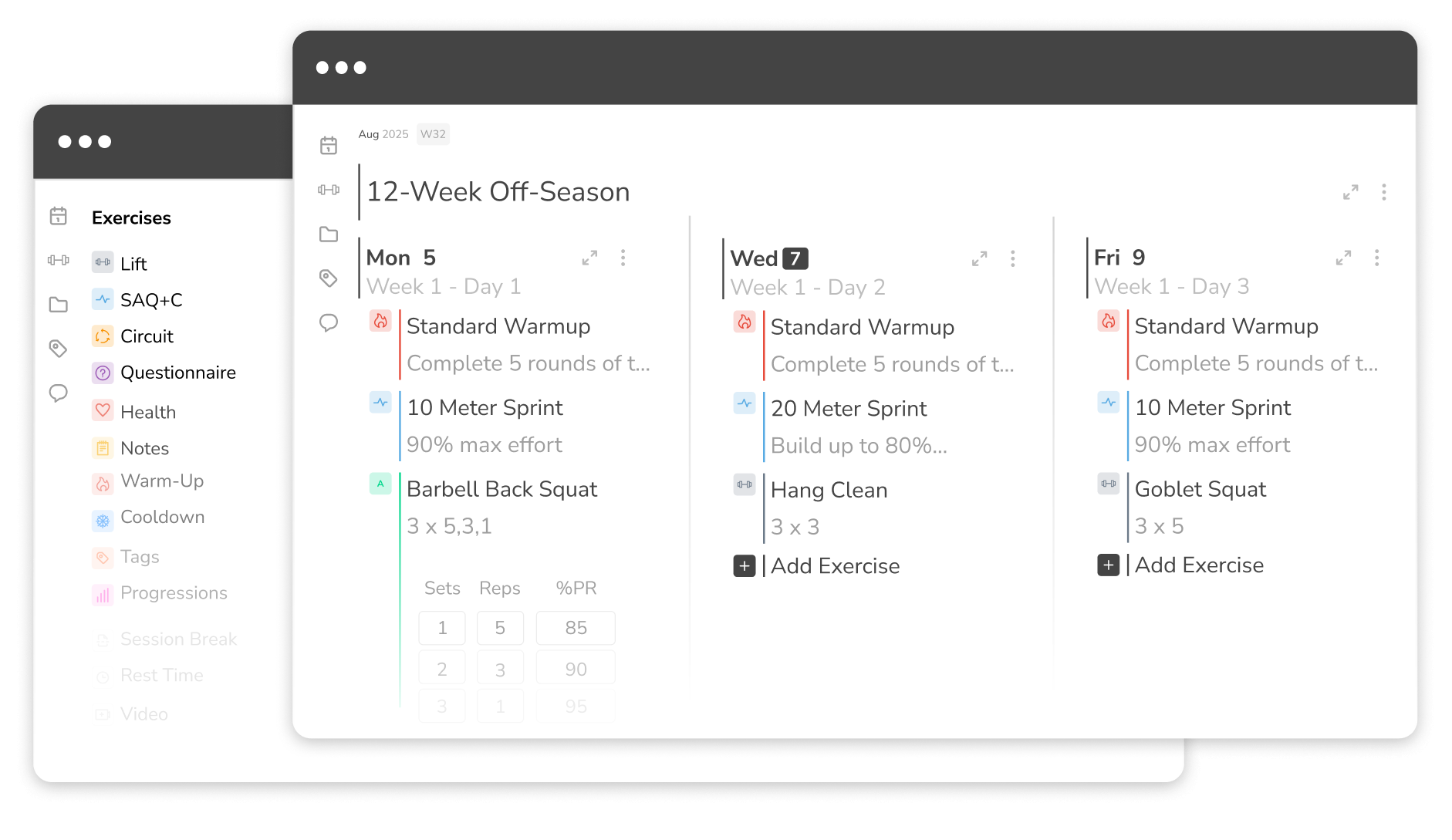
You built and saved workout programs directly on the calendar.
Your programs carried over automatically — nothing to re-build.
You used “Calendars & Sub-Calendars” to organize.
Calendars & Sub-calendars work exactly the same way.
There was no way to undo an accidental delete.
Undo restores up to 10 deleted items, instantly.
Nothing you've already built is lost.
Every program, calendar, and workout you’ve build in Calendar carries over automatically. It'll feel different for about one session, give it one real workout to build, and it starts to click.
Reference & Support
Everything for when a specific question comes up later — and a real person if it doesn't cover it.
Every BUILD feature, explained.
Have a specific question later? Open the category that matches it. Articles open in a modal so you don't lose your place here.
Building basics
Exercises, lifts, and your first workout
- New Build Overview →
- How to Create a Workout in the Calendar →
- How to Add a Lift →
- Adding a New Exercise on Build →
- Saving & Loading Workouts →
Scheduling & structure
Calendar, groups, and recurring items
- Calendar vs. Groups →
- Advanced Programming on the Calendar →
- Recurring Items in Build →
- Update Future Occurrences in Build →
Editing & workflow speed
Copying, undo, and shortcuts
- How to Edit Saved Programs →
- Ultimate Guide to Copying →
- Ultimate Guide to Copy and Pasting →
- Undo Function →
- Reset Reordering →
- Keyboard Shortcuts →
Programming precision
Notes, tags, pacing, and supersets
- How to Add Notes and Warm Ups →
- Filtering Lifts With Tags →
- Supersets vs. Circuits in Build →
- What is Pacing? →
- Force Max/PR Update Toggle →
A few things to expect early on.
Small, normal things coaches run into in their first sessions — none of them mean something's wrong.
💬 Compiled from your early beta feedback
Old workarounds take a beat to unlearn
If you built a personal workflow around Calendar's limitations, expect a session or two before Build's shortcuts feel like your new default.
Undo only goes back so far
The undo function currently restores up to 10 consecutive deleted items — beyond that, they're gone.
Editing a template updates live athletes
Changing a saved program updates every athlete assigned to it — except days they've already completed.
Edits not saving? Refresh and log back in
On some locked-down networks (like government or school-managed computers), a session hiccup can briefly stop edits from registering.
What changes for you.
Straight answers, pulled from the questions coaches actually ask.
Programs are used for dateless programs. These can be assigned to groups or athletes to complete at their own pace, and saved programs can be edited at any time to update everyone assigned to them
- Within this view, you can look at a certain day of the week for up to the next 6 weeks in a consecutive day view by clicking that Day at the bottom.
- These can be copied to a single date, multiple selected dates, or an entire date range at once.
Still stuck? We've got you.
Support is standing by if the hub didn't answer it — one click away.